
Technical SEO
How to Find Out Why Your Website Lost Traffic
Analytics confirms that visitors stopped arriving, but only Search Console reveals why. Here is the step-by-step diagnostic workflow to isolate dropped pages, queries, and crawl errors.
Key takeaways
- Separate web analytics drops from search visibility drops: tracking script errors and cookie consent bugs frequently mimic organic traffic collapses.
- Switch Google Search Console to a custom date comparison, comparing the drop window directly with the preceding equal period rather than relying on default presets.
- Sort the Pages report by click difference to separate concentrated single-URL declines from widespread domain-level traffic losses.
- Cross-reference impressions and click-through rate: falling clicks with stable impressions points to title tag or SERP snippet changes rather than ranking loss.
- Review Crawl Stats and the Page Indexing report to catch server response timeouts, accidental noindex directives, and canonical overrides.
Why Google Analytics cannot diagnose your drop
When sessions plummet in Google Analytics, website owners often assume search engines rejected their site. In reality, Google Analytics only measures client-side events. It records when a browser executes a JavaScript tracking snippet on your page. If a recent site deployment broke tag firing, if a cookie consent banner blocked analytics for European visitors, or if a caching plugin stripped tracking code from page headers, your analytics graphs show an alarming drop even when search traffic flows normally.
Google Search Console operates on server-side search engine data. It tracks what happens before users reach your website: impressions generated in search result pages, average ranking positions, and clicks through to your domain. If your analytics traffic fell by half while Search Console clicks remained stable, you are troubleshooting a tracking script defect. If Search Console clicks dropped concurrently with analytics sessions, your website suffered real visibility loss in organic search.
Check your real-time analytics reports and server access logs first. If server access logs record consistent organic visitor requests from search engine referrers while analytics registers zero sessions, fix your client-side tracking tag before touching search strategy.
Set up a clean date comparison in Search Console
Standard Search Console views provide poor diagnostic clarity. The default twenty-eight day view bundles normal weekday and weekend fluctuations into a single line, masking the exact moment when visibility changed. To isolate the loss, you must configure a direct date comparison that aligns identical calendar patterns.
Open the Search Results performance report and click the date filter at the top. Select the Compare tab, choose Custom, and compare the two-week period following the drop against the two-week period immediately preceding it. Ensure you match days of the week: compare Monday through Sunday with Monday through Sunday. Comparing mismatched weekdays introduces artificial variance because business queries naturally drop on weekends, while consumer queries often rise.
With the comparison configured, activate all four primary metrics: Total Clicks, Total Impressions, Average CTR, and Average Position. Review the 16-month historical timeline as well. A sixteen-month view provides the context needed to separate cyclical seasonality, such as annual summer dips or holiday spikes, from genuine ranking losses.
Isolate lost clicks by page, query, and device
Once your date comparison is active, scroll down to the data breakdown table and select the Pages tab. Sort the table by "Clicks Difference" in ascending order. This places the URLs that suffered the largest absolute volume losses at the very top of your view.
Examine how the losses distribute across your URL inventory. If eighty percent of your lost traffic concentrates on three specific blog posts or product URLs, you do not have a site-wide quality problem. You have an isolated page-level challenge, such as competitor displacement on specific keywords or an inadvertent content deletion. Conversely, if hundreds of URLs each lost ten to twenty percent of their clicks uniformly, the drop reflects a broader domain-level factor, such as a core algorithm rollout or a shared template defect.
Next, click into the most affected page and switch to the Queries tab. This reveals the specific search terms that stopped sending visitors. Separate brand queries from non-brand queries. If brand searches collapsed, check for domain name registration problems, site-wide downtime, or negative reputation events. If non-brand queries dropped while impressions stayed constant, examine your click-through rates: competitors may have secured featured snippets, or Google may have introduced an AI overview above your standard listing.
Apply a custom regex filter in the Query dimension to exclude your brand name variations. Analyzing non-brand performance in isolation provides a cleaner picture of how search algorithms evaluate your topical relevance.
Inspect page indexing and server crawl health
If impressions plummeted alongside clicks, Google is no longer serving your URLs to searchers. To find out why, navigate away from the Performance report and open the Page Indexing report under the Indexing menu.
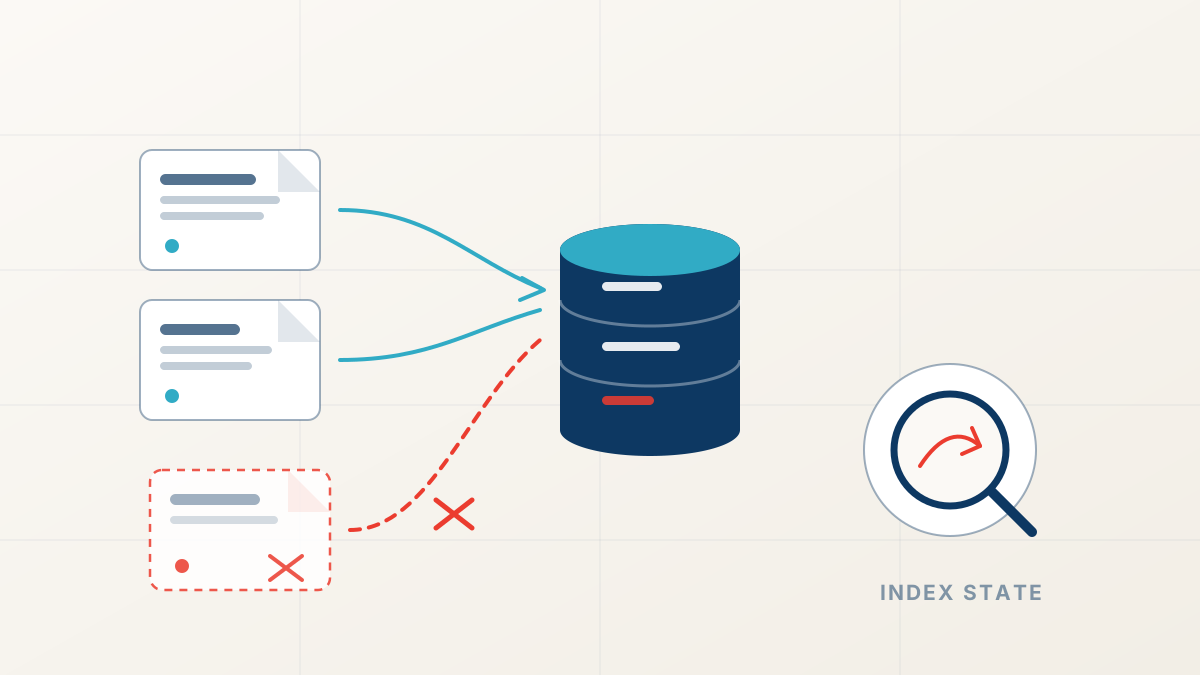
Look at the "Why pages are not indexed" table. Check for sudden spikes coinciding with your traffic drop date. Common culprits include "Excluded by 'noindex' tag," which occurs when developers deploy staging configuration flags to live environments, and "Page with redirect," which appears when URL structures change without proper mapping. Another critical indicator is "Crawled - currently not indexed," which suggests Google evaluated the page content but chose not to include it in search results due to low perceived value or thin substance.
Next, open Settings and review the Crawl Stats report. Inspect the Host Status history. If the host status reflects failures in DNS resolution, server connectivity, or robots.txt fetching, Googlebot could not reach your pages reliably. When Googlebot receives repeated 5xx server errors or connection timeouts, it slows crawl velocity and temporarily suppresses affected URLs from active search results.
Review URL status in the URL Inspection tool
Test the primary lost URLs to verify whether Google considers them indexed and eligible to serve.
Compare user-declared and Google-selected canonicals
Confirm that Google chose the URL you specified rather than consolidating authority into an unrelated page.
Check server response codes in Crawl Stats
Verify that 200 OK responses represent over ninety-five percent of all Googlebot requests.
Inspect robots.txt fetch status
Ensure that your robots.txt file returned a 200 status without intermittent server timeout errors.
Match your data pattern to the root cause
Every search visibility decline leaves a distinct forensic signature across Search Console metrics. Learning to recognize these patterns prevents wasted effort on ineffective fixes.
A vertical cliff where impressions and clicks drop to zero across the entire domain over forty-eight hours indicates a complete technical block: a site-wide noindex tag, a disallow rule in robots.txt blocking Googlebot, severe DNS resolution failure, or a manual spam action.
A sudden step drop occurring during a published Google update window, where impressions fall by thirty to sixty percent across multiple content categories, signals an algorithmic quality re-evaluation. The solution is not a quick code fix; it requires a systematic content audit against search intent.
A gradual slide over three to six months where individual page positions drift from third to seventh while total site indexation remains healthy indicates content decay or competitor displacement. Competitors published more exhaustive resources, and your older content requires updating.
“Data in Search Console never lies, but aggregated charts obscure the truth. Isolate pages first, then queries, and the cause reveals itself.”
Build a dated incident log before deploying fixes
When traffic drops, the natural urge is to apply immediate fixes. Resist this impulse until you document the baseline findings. Record the exact date the drop started, the list of affected URLs, the primary queries lost, and the corresponding Search Console indexing status. This incident log prevents circular troubleshooting and allows you to measure whether subsequent adjustments produce genuine recovery.
If the diagnosis points to technical defects like canonical drift or robots blocks, apply the corrections and use the Search Console "Validate Fix" feature to request expedited recrawling. For content re-evaluations, plan structured updates focusing on verifiable data and user intent.
If your internal review reveals conflicting signals or widespread ranking losses across complex templates, our team provides an in-depth ranking drop diagnosis that isolates verified causes with forensic evidence. For immediate technical checks on canonical tags and header responses, our free SEO audit tools give you clean diagnostic data without software installations.
Ranking Drop Diagnosis
Find out why your rankings dropped
FastestRank dates your traffic loss, ties it to a documented cause, and ranks the fixes: a human-reviewed diagnosis, not an automated checklist.
Sources
FastestRank Editorial
Ranking Recovery Desk
FastestRank Editorial dates and diagnoses ranking drops for business owners, separating verified causes from guesswork before any recovery work begins.
Continue Reading
Related Articles
Core Updates
Why Did My Rankings Drop? A Forensic SEO Diagnostic Guide
A sudden drop in search rankings points to one of five distinct causes. Here is how to date the loss, isolate the mechanism, and avoid the panic changes that make recovery harder.
FastestRank Editorial7 min read
Core Updates
Why Rankings Drop After Google Algorithm Updates
Traffic falls within days of a confirmed Google update. Here is how to date the drop, separate a site-wide loss from a page-level intent mismatch, and avoid the panicked fixes that slow recovery.
FastestRank Editorial6 min read
Technical SEO
Technical SEO Errors That Remove Pages From Google
Pages keep returning 200 while quietly disappearing from search. Rogue canonicals, crawl blocks, and decaying redirect chains explain most of these silent losses.
FastestRank Editorial6 min read